
LESSONS AND LEARNING · TUESDAY, 24 NOVEMBER 2026
Today’s Lesson Release
Module 1 · Computer Fundamentals & Digital Literacy
Dear ORADI Students,
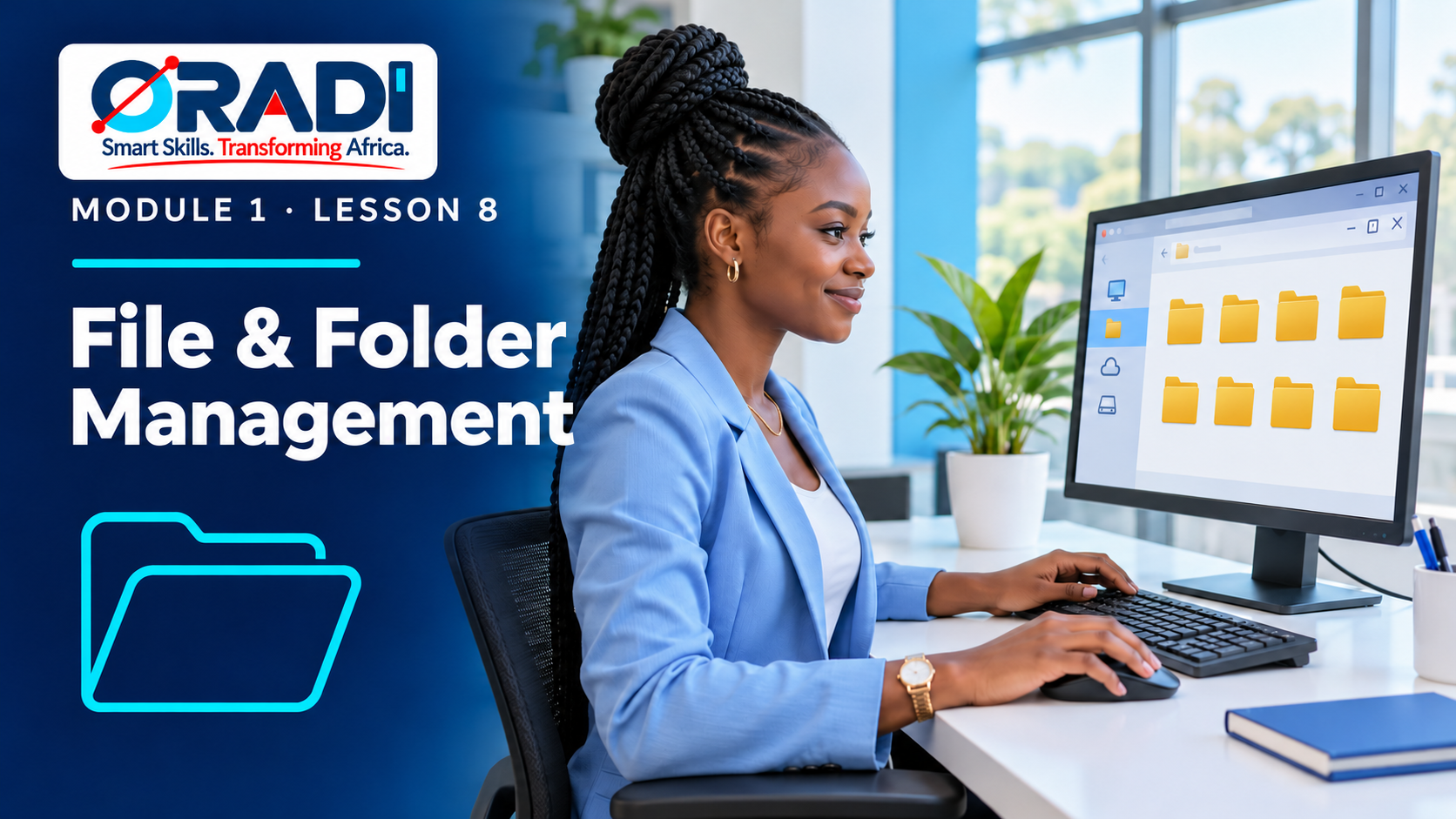
Lesson 8 — File & Folder Management is now available in your Student Portal. Ever saved a file and struggled to find it later? Today you’ll learn how to organise folders, name files clearly and find them in Windows File Explorer. You’ll also practise restoring a deleted file, creating and checking a ZIP archive, and understanding why synchronisation alone does not guarantee a separate backup.
What to do today
- Study Lesson 8 and complete Practices A–F.
Under Practise with Guidance, plan a simple folder structure, create and name files, practise copying and moving them, delete and restore a sample file safely, search and change the folder view, and create and check a ZIP archive. These exercises are ungraded and require no separate upload. - Complete Part A — Written Task.
In Find, Protect and Recover a Contract, advise John on where to search, how to verify the approved version, what permission he needs before using a personal USB copy, and what to check if the contract was deleted. Finish with two practical naming or filing rules. Keep your answers to one readable page. - Complete Part B — Practical Lab.
In File Explorer Operations, use an authorised Windows computer to create two folders and two fictional sample files. Rename, copy and find one file. Safely delete and restore the other from a confirmed local, unsynchronised practice folder. Record what you did and include one privacy-safe screenshot or a facilitator observation record. - Complete Part C — Portfolio Task.
In Professional Digital Filing System, give one fictional filename for each of the six departments listed in the template. Use the short guide to explain how staff should name files, confirm the approved version, control access, share files securely and test recovery from a separate backup. Include the table and guide in your PDF.
Working from a smartphone or tablet? Open the template in Microsoft Word or Google Docs to complete Parts A and C. Arrange supervised Windows access for Part B, then add your lab notes and evidence to the same document. If you cannot confirm that your practice folder is local and unsynchronised, ask your facilitator before deleting a file.
Submit all three parts as one PDF
Download the editable Word template, add your full name and replace the bracketed prompts with your own work. The page breaks are already in place.
Download the assignment template (Word)
Keep your work in this order, with each part starting on a fresh page.
- Part A — Find, Protect and Recover a Contract
- Part B — File Explorer Operations
- Part C — Professional Digital Filing System
Each part carries 10 marks, for a total of 30 marks. Export the completed document as one PDF and open it to check that all three parts and your evidence are readable. No separate ZIP or practice-file upload is required.
Filename — Lesson_1.8_Assignment_YourName.pdf. Replace YourName with your own name.
Upload your PDF once under Module 1 → Lesson_1.8_Assignment. Select Start Assignment if shown, check the displayed file-size limit, attach your PDF using Choose Files and select Submit. Look for a confirmation message or updated submission status.
Use fictional information only and keep private details out of your evidence. Follow the academic integrity and responsible AI instructions in Orientation.
You can also keep a copy of your filing plan in the My Portfolio tab to revisit later. Assignments are marked by facilitators, and there is no fixed marking timeframe.
New lessons and their tasks are scheduled to open at 04:00 CAT, Monday through Saturday.
Sign in to your Student Portal
ORADI — Smart Skills. Transforming Africa.