LESSONS AND LEARNING · MONDAY, 23 NOVEMBER 2026
Today’s Lesson Release
Module 1 · Computer Fundamentals & Digital Literacy
Dear ORADI Students,
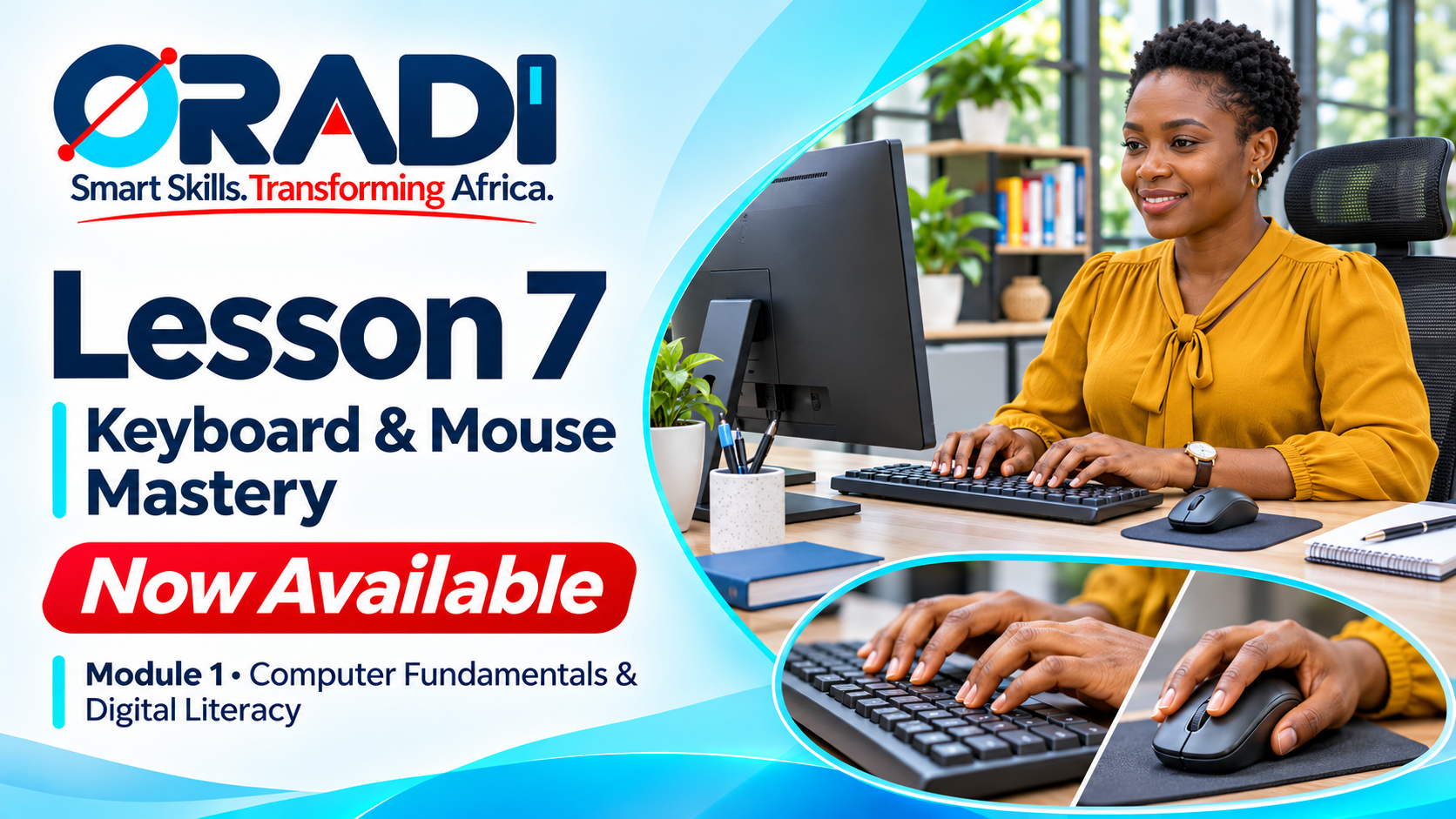
Lesson 7 — Keyboard & Mouse Mastery is scheduled to open in your Student Portal today. Want to type more accurately, use shortcuts confidently and spend less time searching for keys? Today you’ll explore keyboard sections, practise home row placement, improve mouse and touchpad control, and use shortcuts for everyday office tasks. You’ll also record your typing speed and accuracy to identify what to practise next.
What to do today
- Study Lesson 7 and practise in your notes.
Complete Practices A–E in Practice with Guidance. Adjust your workstation, find the keys, type and check a workplace message, practise five mouse actions and try a shortcut sequence. These exercises are ungraded and require no separate upload. - Complete Part A — Written Task.
Read Scenario: A Quick Reference for New Staff under Apply It: Workplace Challenge. Prepare your one-page New Employee Keyboard & Mouse Quick Reference for Nobuhle’s five new employees. Include a comfortable setup, keyboard sections and home row placement, five mouse actions with uses, at least eight shortcuts including Save and Lock, and two habits for improving typing accuracy. - Complete Part B — Practical Lab.
Carry out your Typing, Mouse and Shortcut Demonstration on an authorised computer. Record three comparable five-minute typing attempts using the same tool or scoring method, including WPM, accuracy and a brief observation for each. Complete the mouse or touchpad action log and demonstrate at least ten distinct shortcuts, including Copy, Paste, Undo, Save and Switch applications. Check your sample document and record where you saved it. - Complete Part C — Portfolio Task.
Prepare your Keyboard & Mouse Productivity Assessment using your actual Part B results. Include all three typing results and your method, explain what the results show, and summarise the actions you demonstrated. Identify one strength and one improvement area supported by your evidence, then set out a one-week practice plan. One or two pages are sufficient.
Submit all three parts as one PDF
Download the editable Word template, add your name and replace the bracketed prompts with your own work. The page breaks are already in place.
Download the assignment template (Word)
Arrange your work in this order, with each part starting on a fresh page.
- Part A — New Employee Keyboard & Mouse Quick Reference, kept to one readable page.
- Part B — Typing, Mouse and Shortcut Demonstration, including your results table and action logs.
- Part C — Keyboard & Mouse Productivity Assessment
Each part carries 10 marks, giving a total of 30 marks. Save or export the complete document as one PDF, then open it and check that all pages, tables and evidence are readable.
Filename —
Lesson_1.7_Assignment_YourName.pdf
Replace YourName with your own name.
Upload your PDF once under Module 1 → Lesson_1.7_Assignment. Select Start Assignment if shown, check the displayed file-size limit, attach your PDF using Choose Files and select Submit. Look for a confirmation message or updated submission status.
Use harmless sample text and practice items, and keep private information out of your evidence. If computer access is limited, practise key positions on a facilitator-provided diagram and arrange supervised computer access for Part B. Follow the academic integrity and responsible AI instructions in Orientation.
New lessons and their tasks are scheduled to open at 04:00 CAT, Monday through Saturday. Before you finish for the day, check that your combined PDF submission is recorded and keep a copy for your ORADI portfolio.
Sign in to your Student Portal
ORADI — Smart Skills. Transforming Africa.